
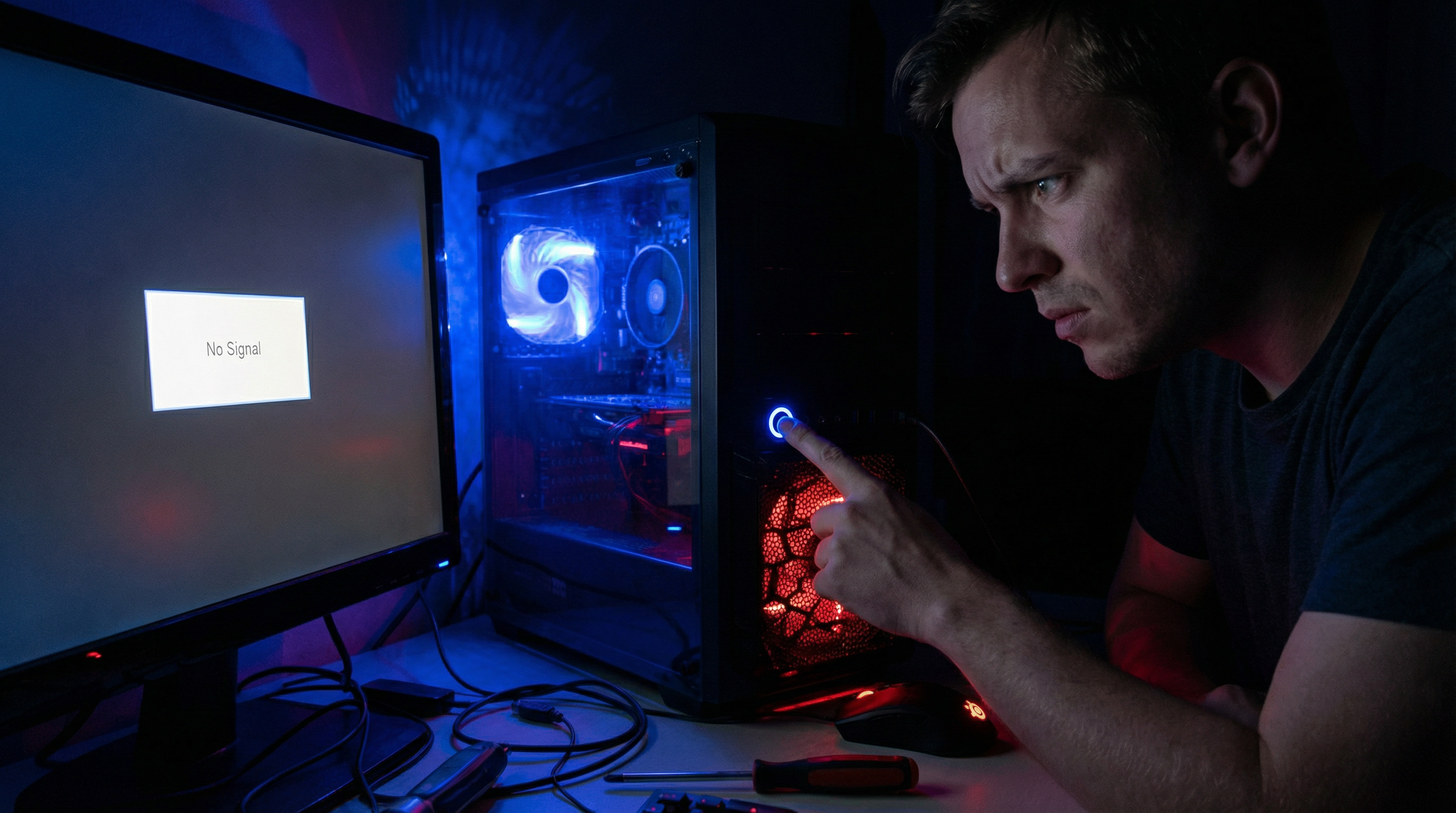
Few things are more frustrating than a computer that restarts itself — especially when it happens mid-project and you lose unsaved work. The problem is that random restarts can come from a half-dozen different places: hardware, software, heat, power, or even malware. Before you can fix it, you need to know which one you're dealing with.
After 20 years repairing computers across the Baton Rouge area, I've seen every variation of this problem. Here are the seven most common causes, how to identify each one, and what you should do about it.
1. Overheating — The Most Common Culprit
Your computer has a built-in self-protection system: if internal temperatures get too high, it shuts down immediately to prevent permanent damage to the processor or motherboard. This is the single most common cause of random restarts we see in the shop.
What it looks like
- Restarts happen after the computer has been running for a while (30–60+ minutes)
- Restarts happen more often during demanding tasks like gaming, video editing, or even just having many browser tabs open
- You can feel or hear the fans running hard before it shuts off
- The computer is warm to the touch on the bottom or rear vents
Common causes of overheating
- Dust-clogged heatsink or vents — this is the number one culprit in laptops and tower PCs that are more than 2–3 years old
- Dried thermal paste — the compound between the CPU and heatsink dries out over time, reducing heat transfer dramatically
- Failed or failing fans — one dead fan can cause the whole system to overheat under load
DIY check
Download HWMonitor (free) and watch your CPU temperature under load. Normal operating temps are generally under 80°C for most processors. If you're seeing 90°C or higher at idle or light use, heat is your problem.
When to call a pro
Cleaning the inside of a laptop — especially removing the heatsink to replace thermal paste — requires disassembly that can void warranties or damage components if done incorrectly. A professional cleaning and thermal repaste takes about an hour and makes a dramatic difference.
2. Bad RAM
Faulty RAM (memory) is the sneakiest cause of random restarts because it often gives no warning at all — the computer just instantly reboots, sometimes without even a blue screen. The behavior is completely unpredictable.
What it looks like
- Instant restarts with no error message or blue screen
- Restarts happen seemingly at random — no particular task triggers them
- Occasional memory-related errors when launching applications
- The computer may restart in a specific application but not others
DIY check
Run Memtest86 — it's a free bootable tool that tests your RAM independently of Windows. Let it run at least two full passes. Any errors at all mean the RAM is bad and needs to be replaced. You can also try reseating the RAM sticks (remove and firmly reinsert them) — a loose stick causes the same symptoms.
When to call a pro
If Memtest86 shows errors, bring the machine in. We'll confirm which stick is bad, source compatible replacement RAM, and install it correctly — including verifying the system is stable afterward.
3. Failing Power Supply
The power supply unit (PSU) in a desktop converts wall power to the voltages your components need. When it starts failing, it can no longer maintain stable voltage under load — and the system crashes or restarts to protect itself.
What it looks like
- Restarts happen specifically during demanding tasks: gaming, large file transfers, or running multiple applications simultaneously
- The computer is fine during light use like web browsing but restarts when pushed harder
- Older machine (PSUs typically last 5–8 years)
DIY check
A PSU tester is inexpensive and tells you if voltage rails are within spec. However, a failing PSU can pass a no-load test and still fail under real load. The most reliable diagnostic is swapping in a known-good PSU of equal or greater wattage.
When to call a pro
PSU replacement in desktops is straightforward, but correctly identifying whether the PSU is actually the cause saves you from buying a new one unnecessarily. We test under load to confirm before recommending a replacement.
4. Corrupt Windows or Driver Issues
A bad Windows update, a corrupted system file, or an unstable device driver can all trigger automatic restarts. Unlike hardware failures, these typically follow a pattern tied to specific software events.
What it looks like
- Restarts started happening right after a Windows update
- Restarts happen when you use a specific piece of hardware (a new printer, an external GPU, a USB device)
- You see a blue screen (BSOD) with a stop code before the restart
- The Windows Event Viewer shows critical errors matching the restart times
DIY check
Open Event Viewer (search for it in the Start menu), go to Windows Logs > System, and look for Critical or Error events at the exact time of each restart. The stop code or error description points to the responsible driver or system component.
When to call a pro
If sfc /scannow and DISM restore commands don't resolve the corruption, or if a driver rollback doesn't fix the issue, a professional can perform a targeted repair install of Windows without losing your files.
5. Malware
Certain types of malware — particularly rootkits and some types of ransomware — force restarts as part of their installation or execution cycle. This is less common than hardware causes, but it's one you can't ignore.
What it looks like
- Restarts started after downloading software from an untrusted source or clicking a suspicious link
- Restarts happen at specific intervals (some malware has scheduled restart triggers)
- You notice other unusual behavior: browser redirects, new programs you didn't install, antivirus suddenly disabled
DIY check
Run a full scan with Malwarebytes (free version) in addition to Windows Defender. Do this in Safe Mode if you suspect an active infection — some malware actively blocks security scanners when running normally.
When to call a pro
If scans find malware but restarts continue, or if you suspect a rootkit (which can survive standard removal), professional removal tools and techniques are needed. We perform thorough remediation and verify the system is clean before returning it.
6. Failing Hard Drive or SSD
When your storage drive starts failing, Windows may encounter read errors on critical system files and trigger an emergency restart rather than crash with data corruption. This is a sign that data loss is imminent.
What it looks like
- Restarts are accompanied by a long boot time or Windows taking much longer than usual to load
- You notice files becoming corrupted or programs failing to open
- Clicking, grinding, or unusual noises from the machine (with traditional hard drives)
- S.M.A.R.T. warnings from your drive
DIY check
Download CrystalDiskInfo (free) and open it. It reads S.M.A.R.T. data from your drive. If the status shows anything other than "Good" — especially reallocated sectors, pending sectors, or uncorrectable errors — your drive is failing and needs immediate attention.
When to call a pro
Do not run chkdsk or other repair tools on a drive showing S.M.A.R.T. errors — you can accelerate the failure and destroy data. Bring it in. We'll image the drive first to protect your data, then assess whether repair or replacement is the right path.
7. Windows Update Loop
Sometimes Windows gets stuck in an update cycle — it downloads an update, tries to apply it, fails, rolls back, and then the process starts over. This can look like random restarts but actually follows a predictable pattern.
What it looks like
- Restarts always happen at a similar time (often during off-hours when Windows Update is scheduled)
- You see "Preparing to configure Windows," "Failure configuring Windows updates," or similar messages during the restart
- The computer is stuck restarting repeatedly and won't fully boot
DIY check
Boot into Safe Mode and run the Windows Update Troubleshooter from Settings. You can also try clearing the Windows Update cache by stopping the Windows Update service and deleting the contents of C:\Windows\SoftwareDistribution.
When to call a pro
If the update loop is preventing normal boot or if clearing the cache doesn't resolve the loop, a professional repair install or manual Windows update reset is the fastest path to a stable system.
How to Figure Out Which One You Have
Work through this quick checklist:
- Is the machine hot? — Start with overheating. Check temperatures with HWMonitor.
- Does it restart under load but not at idle? — PSU or overheating.
- Instant restarts with no BSOD? — Run Memtest86 for RAM.
- Did it start after a Windows update? — Driver or update corruption.
- Is CrystalDiskInfo showing warnings? — Stop using the drive and call us immediately.
- None of the above? — Run Malwarebytes and check Event Viewer for clues.
If you've worked through the basics and the restarts keep happening, the problem is either hardware-level (which requires physical diagnosis) or deeper software corruption that tools can't reach on their own.
Still Restarting? We'll Find the Real Cause.
Geeks Anywhere is Baton Rouge's veteran-owned computer repair team with 20 years of experience. We diagnose the actual cause — not just swap parts until something works. Call us or book online for an expert assessment.
Call 225-235-0846Book an Appointment Online